Creating a Payment Page Using a Config File
This guide walks you through uploading the sample Payment Page configuration provided by CommBank Connected Payments, creating your configuration, and previewing your Payment Page.
Before you start
Make sure you have the sample configuration file provided by CommBank Connected Payments ready to upload.
About the sample configuration
The configuration provided by CommBank Connected Payments is a sample configuration and starting point for your Payment Page.
You can:
- Use the sample configuration as provided to get started quickly.
- Edit the configuration to customise your Payment Page to suit your requirements.
- Move to a different template later if you prefer to manage your Payment Page using a different template.
You are not locked into the sample configuration. You can start with it now, customise it as needed, or choose to move to a template later.
Sample configuration file
Download the sample Payment Page configuration to get started:
Download QuickStart_PaymentConfig.json1. Sign in to the Merchant Portal
Sign in to the appropriate Connected Payments Merchant Portal using the login details provided to you by CommBank Connected Payments:
- Production: Sign in to the Production Merchant Portal
- Sandbox: Sign in to the Sandbox Merchant Portal
Use the Sandbox environment for testing and the Production environment for your live Payment Page.
Check that you're using the correct portal and the login details provided by CommBank Connected Payments. If you still can't access the portal, contact your CommBank Connected Payments support representative.
2. Import the sample configuration
After signing in to the Merchant Portal:
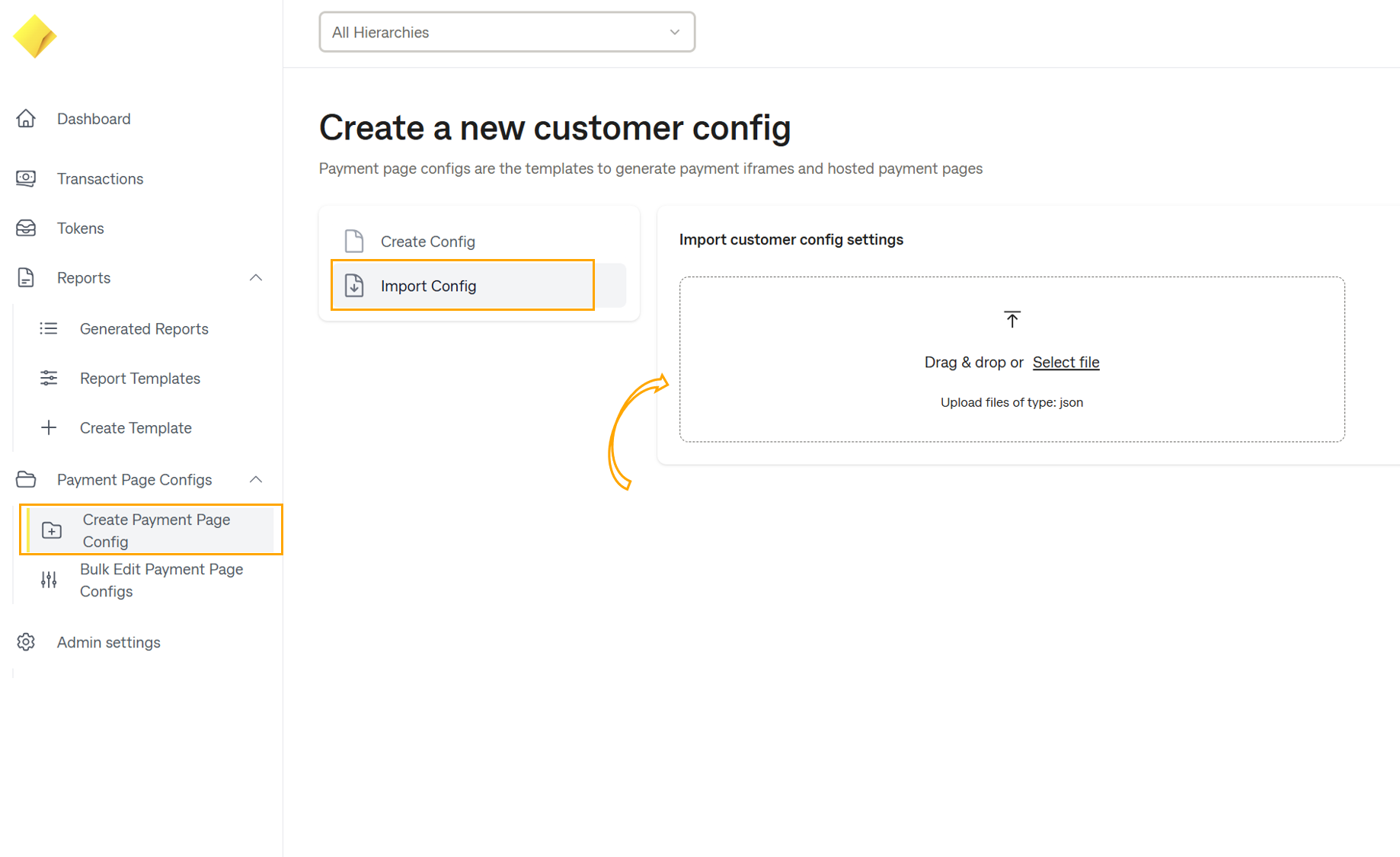
- From the left-hand navigation, select Payment Page Configs > Create Payment Page Config.
- On the Create a new customer config page, select Import Config.
- Upload the sample configuration file provided by CommBank Connected Payments using the upload area.
Once uploaded, the configuration will appear on screen so you can review it before continuing.
The configuration supplied by CommBank Connected Payments is a sample designed to help you get started quickly. You can use it as provided, edit it to customise your Payment Page, or choose to move to a template later.
3. Create your configuration
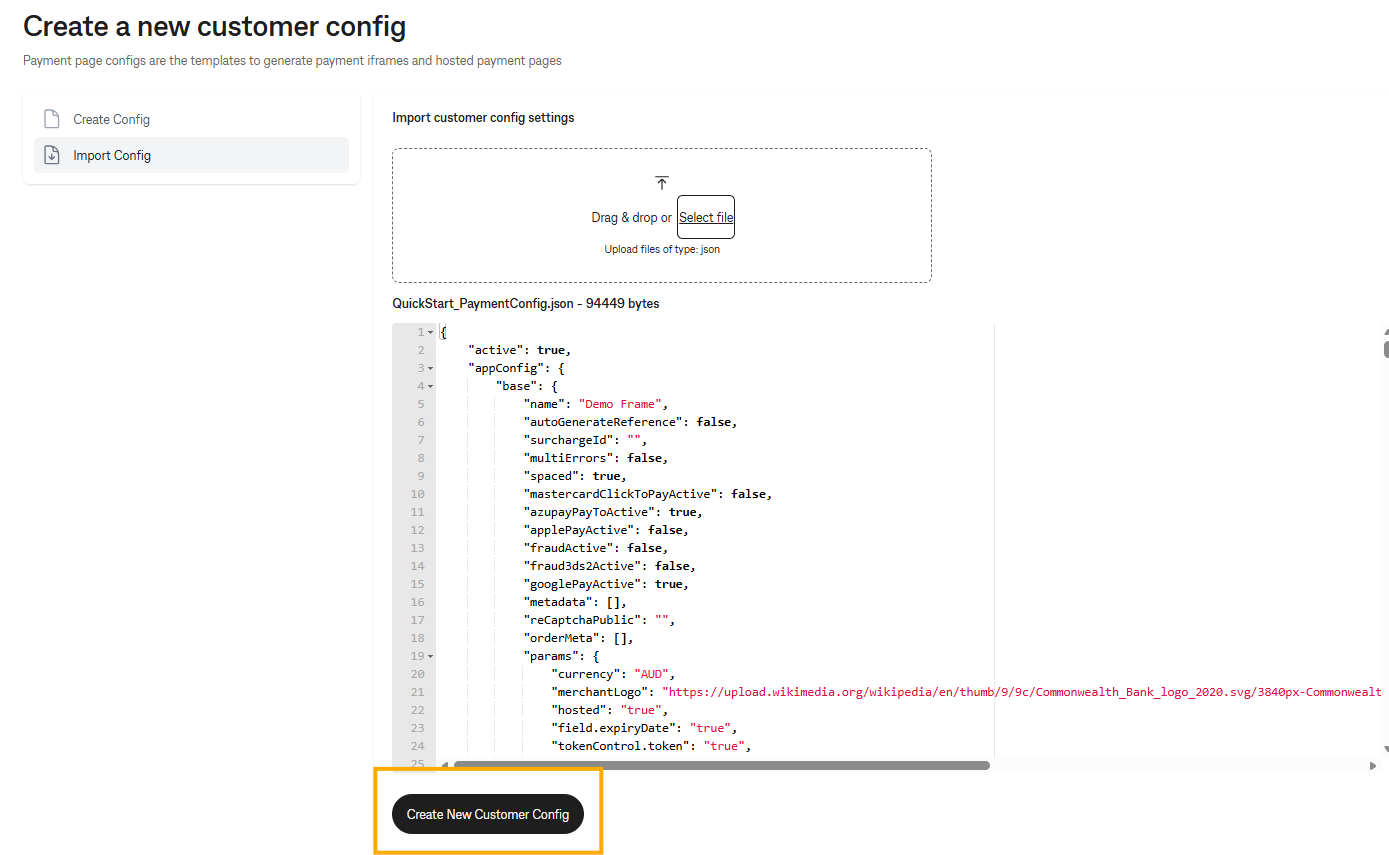
Once the sample configuration has uploaded, review the configuration displayed on screen.
When you're ready to continue, select Create New Customer Config.
You'll be taken to the View Customer Config page when your configuration has been created successfully.
If you plan to customise the sample, keep a copy of the original or your last working configuration before making changes.
4. Review your iframe configuration
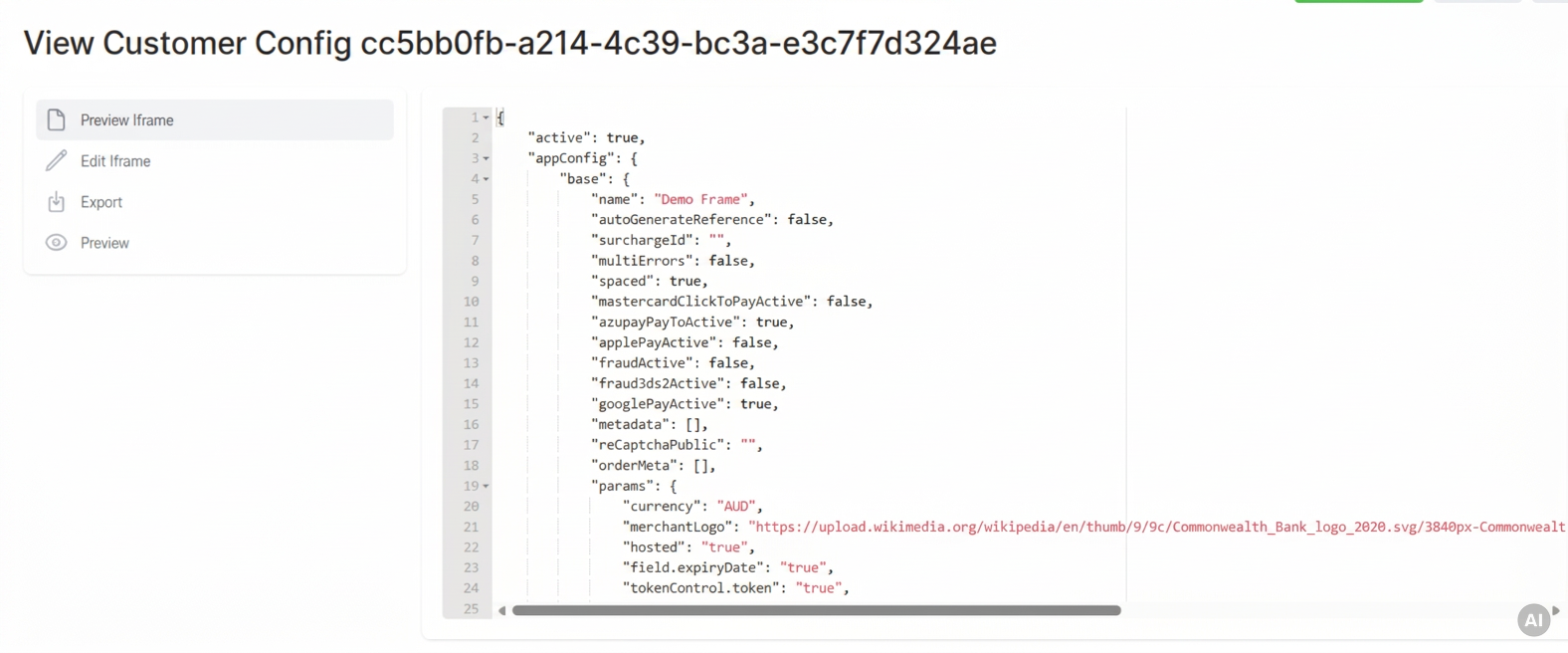
This screen displays the configuration that will be used to render your Payment Page in an iframe. Review the configuration to confirm that your uploaded settings have been applied as expected.
5. Preview your Payment Page
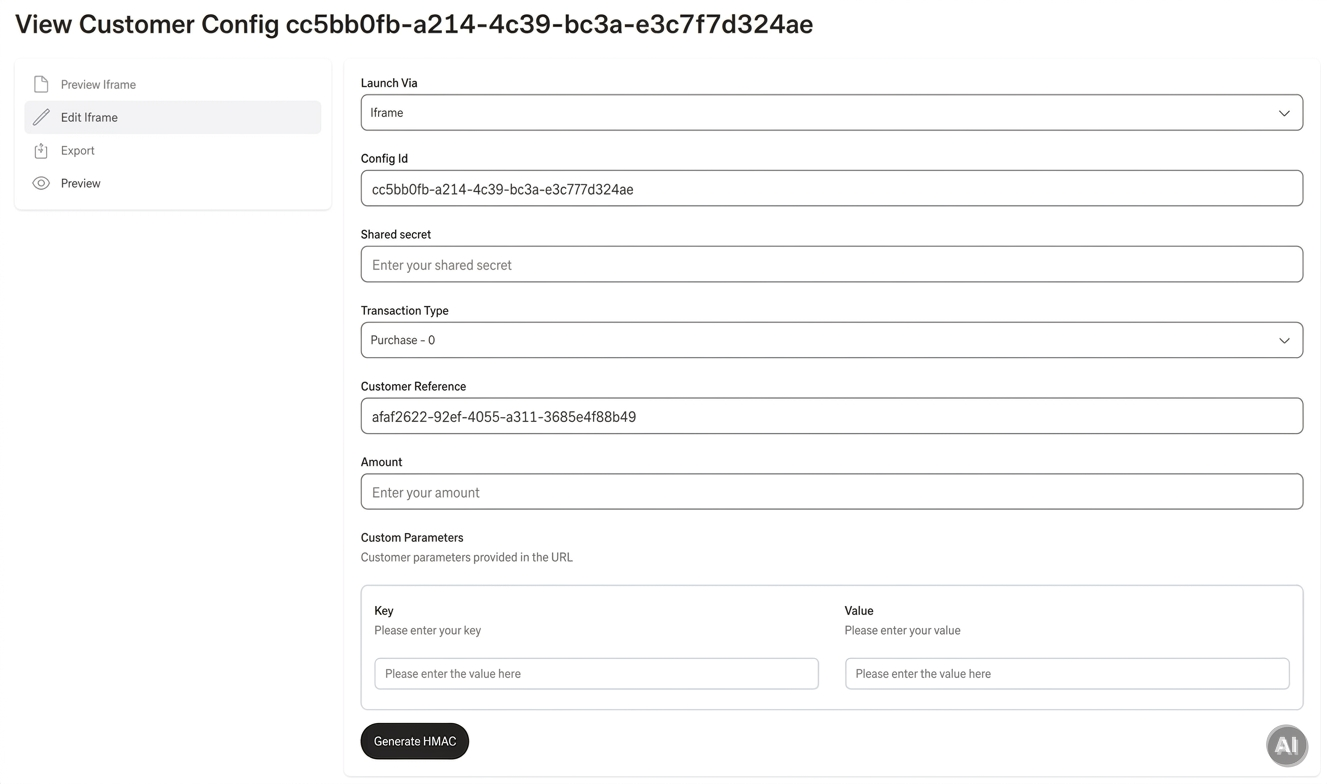
From the menu on the left, select Preview.
- Under Launch Via, select iframe or Hosted, depending on how you want to launch your Payment Page.
- iframe – preview the Payment Page embedded within your experience.
- Hosted – preview the Payment Page as a hosted page.
- Review the pre-populated details and update any fields required for your preview.
- Your Shared Secret may be pre-populated based on your permissions.
- Enter the payment amount in Amount and, if required, add any Custom Parameters.
- Select Generate HMAC to generate the information required to launch your Payment Page preview.
6. Check your Payment Page
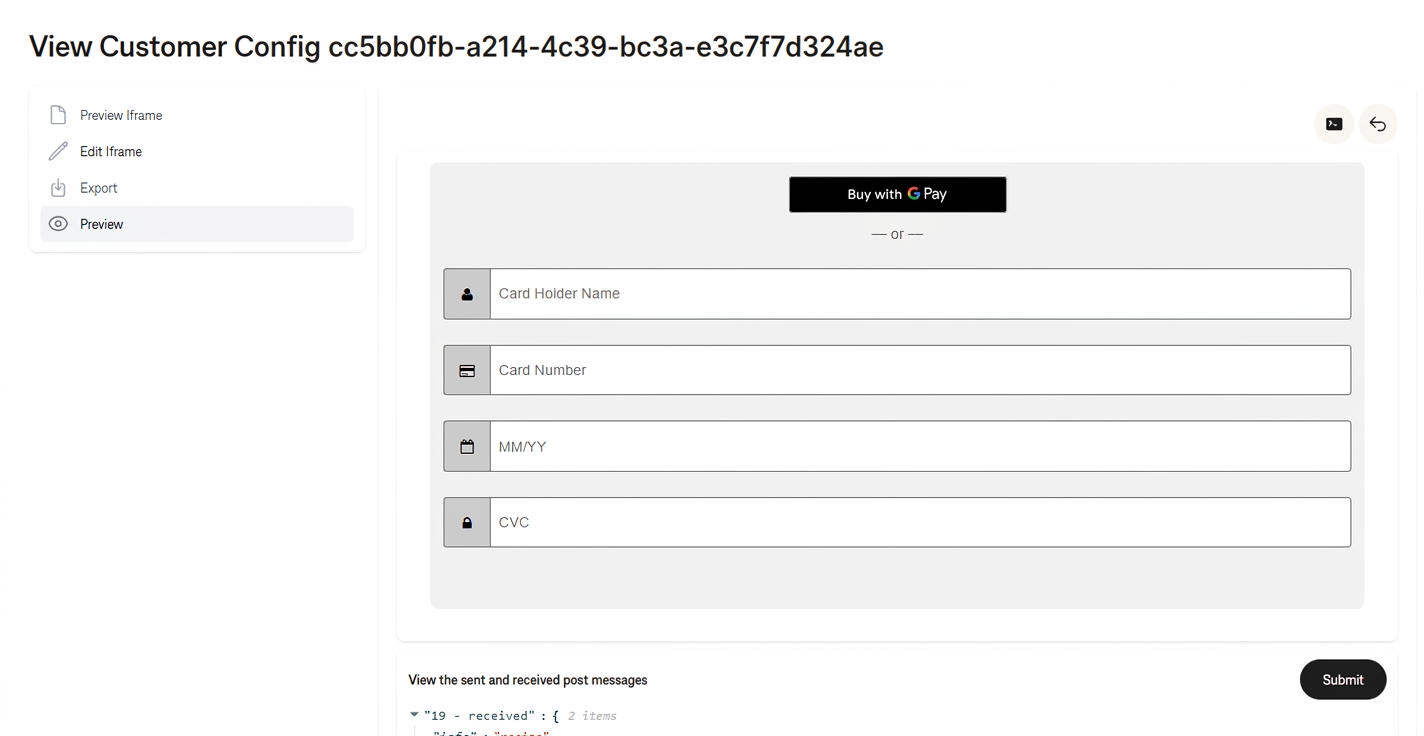
Your Payment Page preview will open. Check that it looks and behaves as expected.
Optional: Customise your Payment Page
If you need to make changes to your Payment Page after creating it:
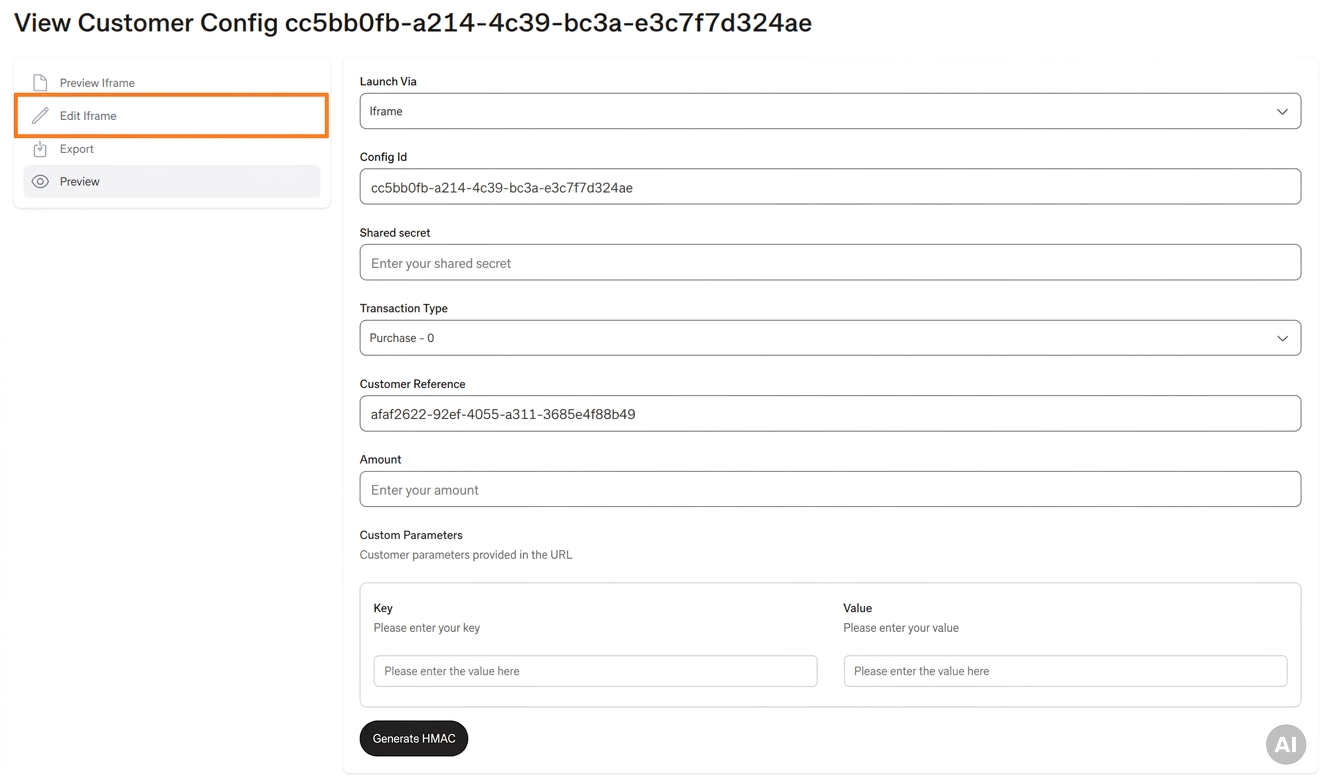
- Select Edit iframe from the left-hand menu.
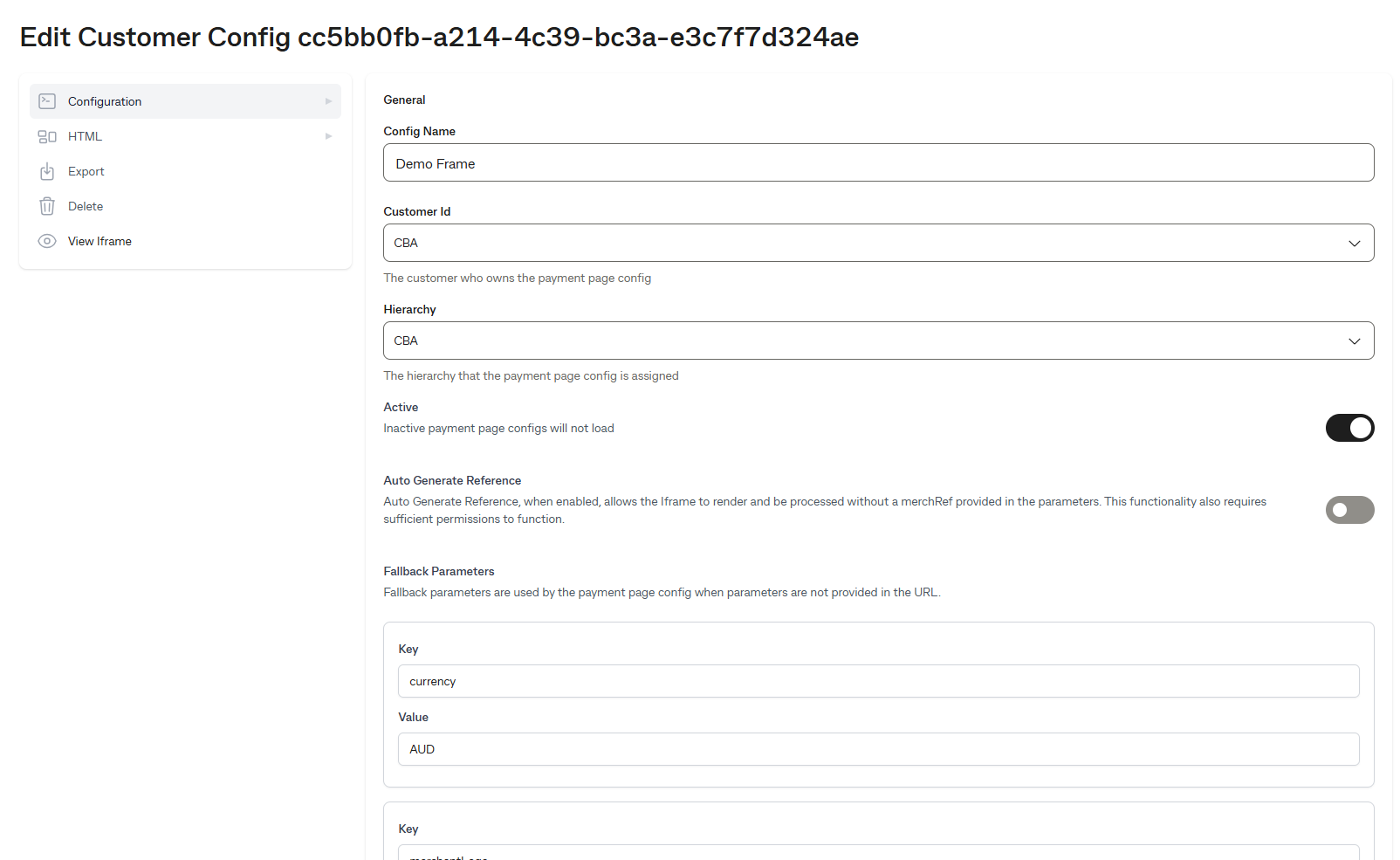
- On the Edit Customer Config page, review and update the available fields to suit your requirements.
- If required, select Configuration or HTML to update the Payment Page content and configuration.
- Save your changes by selecting Update.
- Return to Preview to check that your Payment Page looks and behaves as expected.
We recommend making changes incrementally:
Make one change → Preview your Payment Page → Test → Continue
Keep a copy of your last working configuration before making further changes. This makes it easier to identify which change may be causing an issue.
Find your Config ID
After you've created your Payment Page configuration, you can find its Config ID at any time from the Merchant Portal.
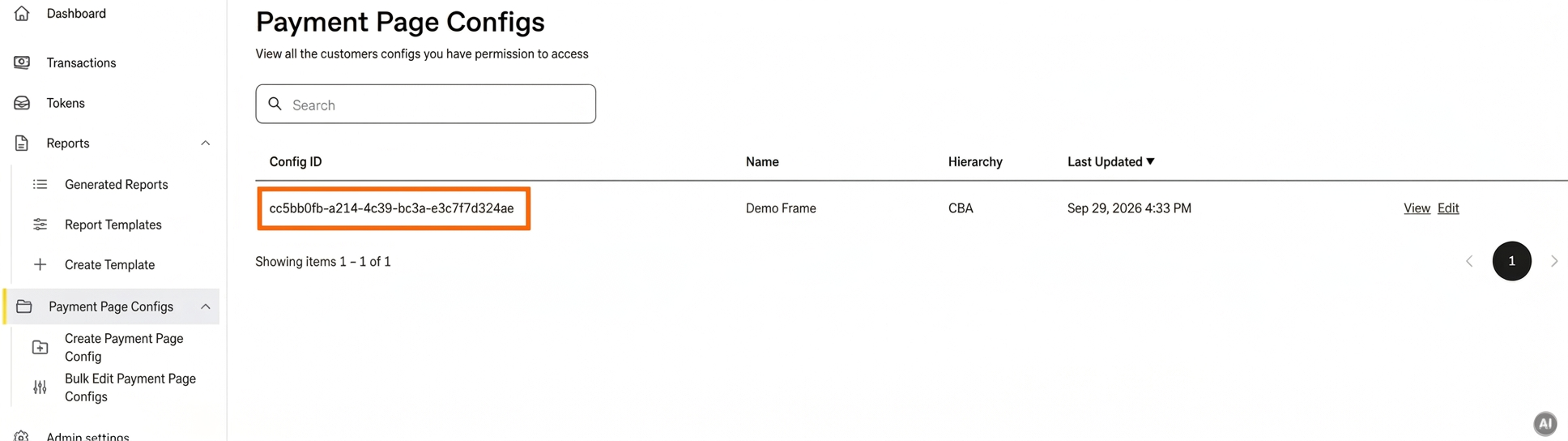
- From the left-hand navigation, select Payment Page Configs.
- Find your configuration in the list.
- Your Config ID is displayed in the Config ID column alongside the configuration name.
- If you have multiple configurations, use the configuration Name or the search field to help locate the one you need.
You can also select View or Edit alongside the configuration to open it.
Keep your Config ID handy if you need to reference a specific Payment Page configuration during setup or when requesting support.
Want to use a template later?
You don't need to keep managing your Payment Page using the sample configuration.
If your needs change, you can move to a template later and manage your Payment Page that way instead.
Start with the sample configuration → Customise as needed → Move to a template later
If something doesn't work as expected
If you experience an issue while uploading, previewing or customising your Payment Page, try the steps below.
The configuration won't upload
- Check that you're uploading the sample configuration file provided by CommBank Connected Payments.
- If you've made changes to the sample, try uploading the original sample configuration again.
- If the original file uploads successfully, review your changes before trying again.
The Payment Page doesn't look or behave as expected
If you've customised the sample configuration:
- Return to your last working configuration.
- Make your changes again one at a time.
- Preview your Payment Page after each change.
This makes it easier to identify which change may be causing the issue.
Need to start again?
You can return to the original sample configuration provided by CommBank Connected Payments and repeat the upload and preview steps.
Re-importing a configuration?
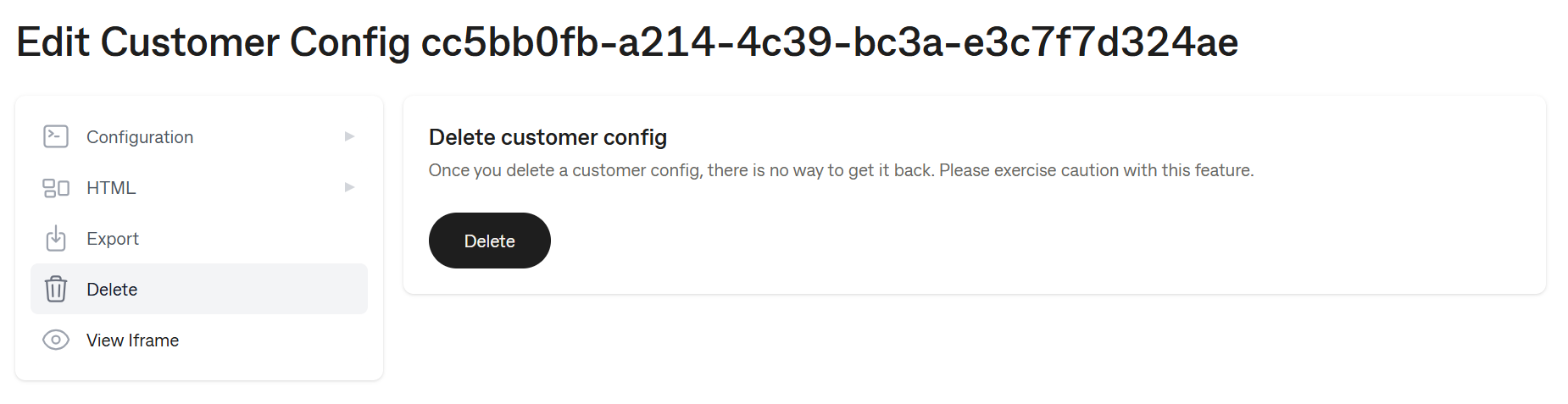
If you want to replace your existing Payment Page configuration by importing another configuration, you can delete the existing configuration first.
- Open the configuration you want to remove and select Edit Iframe.
- Select Delete from the left-hand menu.
- Confirm that you've selected the correct configuration before deleting it.
- Once deleted, return to Payment Page Configs and import your new configuration.
Deleting a configuration is permanent and cannot be undone. Only delete the existing configuration when you're certain it is no longer required. Consider keeping a copy of your existing configuration before deleting it.
Still having trouble?
If you still can't upload or preview your Payment Page, contact your CommBank Connected Payments support representative for assistance.
When requesting support, provide details of the step you're having trouble with and any error message displayed.